
The AiVR finds cameras on its local network, pulls one stream from each camera, records it and runs AI detection on it. This article explains how to discover cameras with a network scan, add them, add a camera manually by RTSP, and confirm each camera is streaming correctly.
1. Before You Start
Prepare each camera before adding it. The AiVR reads streams over RTSP and finds cameras with ONVIF, but it can't change camera settings. Every setting is made on the camera itself.
- Camera supports ONVIF Profile S or provides an RTSP stream, in H.264 or H.265. MJPEG isn't supported.
- Camera firmware is up to date.
- Camera clock is set by NTP. A wrong clock can stop the stream from being added.
- Camera has a fixed IP address (DHCP reservation or static IP on the camera). The AiVR connects to cameras by IP address.
- A dedicated stream profile named Alocity is built on the camera. See Best Camera Configurations for AiVR.
- ONVIF is enabled with a dedicated ONVIF user, or you have the camera's RTSP URL and credentials.
- The camera is on the same network or VLAN as the AiVR. See Alocity AiVR Network Requirements.
- The AiVR has a free camera slot.
Note: Use a dedicated ONVIF/RTSP login, not the camera's web admin login. If you don't know the camera's credentials, contact the camera manufacturer. Alocity can't support third-party camera credentials.
2. Check for a Free Camera Slot
Open AiVR, click the AiVR's name and look at CAMERA SLOTS on the Camera Streams tab. Each stream uses one slot. A four-sensor camera uses four slots. If every slot is used, the Add → buttons in the scan results are greyed out with the message No camera slots available.
3. Scan the Network for Cameras
- Go to AiVR and click the AiVR's name.
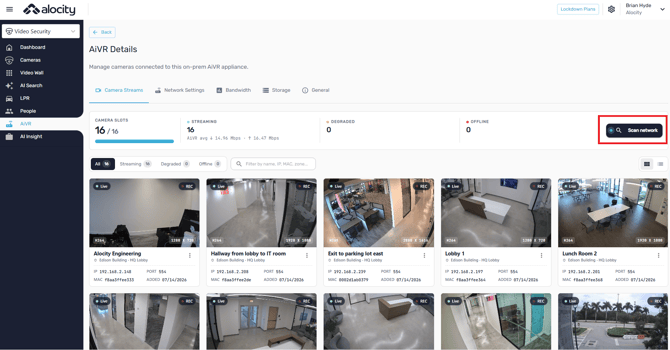
- On the Camera Streams tab, click Scan network.
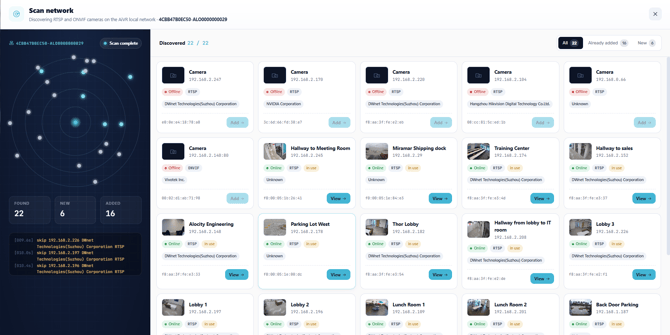
- The Scan network window opens and starts discovering RTSP and ONVIF cameras on the AiVR's local network. The status changes from Scanning… to Scan complete, usually within 10–20 seconds.
The left panel shows counters for FOUND, NEW and ADDED cameras and a log of the scan. The right panel lists every camera found. Use the chips All, Already added and New to filter the list.
Each result card shows:
- A thumbnail, if one is available, and the camera's name (Camera when the name is unknown)
- IP address and port
- Online (green) or Offline (red)
- Protocol: RTSP or ONVIF
- An amber in use chip if the camera is already on this AiVR
- Manufacturer and MAC address
4. Add a Discovered Camera
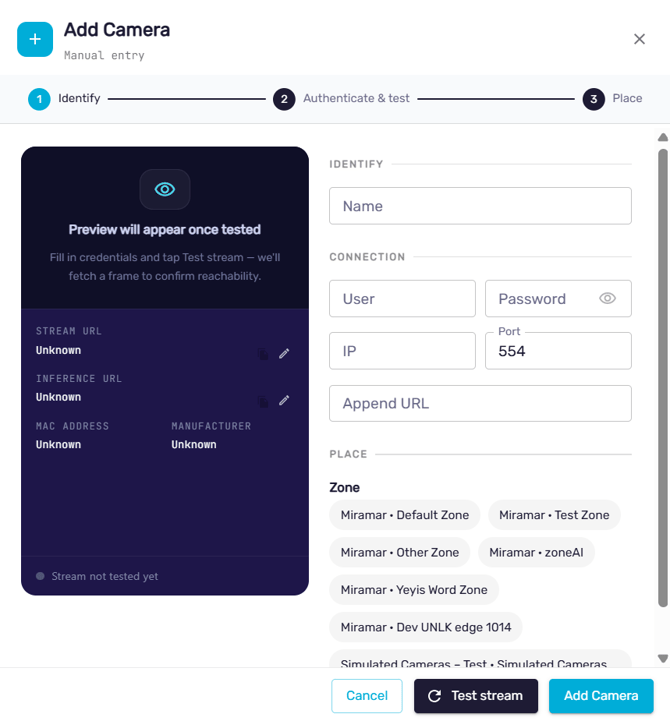
- Click Add → on the camera's card. (Cameras already added show View → instead.)
- Under IDENTIFY, enter a Name that describes the camera's view, for example "Front Door Exterior".
- Under CONNECTION, enter the camera's User and Password. Check the IP and Port (554 by default) and the Append URL.
- Under PLACE, select the Zone (site and area) the camera belongs to.
- Click Test stream and wait for the preview to play.
- Click Save. The camera takes a slot and appears on the Camera Streams tab.
Note: If the password contains special characters, URL-encode them or use a password without them: @ becomes %40, # becomes %23 and : becomes %3A.
5. Add a Camera Manually by RTSP
Use a manual RTSP connection when ONVIF isn't available or the scan doesn't find the camera. Split the camera's RTSP URL into the form fields:
| Part of the URL | Example | Form field |
|---|---|---|
| Camera IP | 10.156.59.230 | IP |
| RTSP port | 554 | Port |
| Everything after the port | 1/profile2/media.smp | Append URL |
| Camera login | — | User / Password |
Leave INFERENCE URL blank. The AI analyzes the same stream the AiVR records, so no separate inference stream is needed.
Common RTSP paths by brand (confirm with an ONVIF scan, ONVIF Device Manager or the camera manual):
| Brand | Main stream path | Multi-sensor / channel |
|---|---|---|
| Axis | /axis-media/media.amp | ?camera=1 … N |
| Hanwha Vision | /profile2/media.smp | /<ch>/profile2/media.smp (channels start at 0) |
| Avigilon | /defaultPrimary?streamType=u | /defaultPrimary-0 … -3 |
| Bosch | /?h26x=4&line=1&inst=1 | line=1 … N |
| Hikvision | /Streaming/Channels/101 | Sensor 2 = 201 |
| Dahua / Amcrest | /cam/realmonitor?channel=1&subtype=0 | channel=1 … N |
| Uniview | /media/video1 | Model-specific |
| Reolink | /h264Preview_01_main | _02_, _03_ … |
Tip: Don't count rows in the camera's profile list to guess the profile number. A profile listed fourth can still be profile2 in the URL. Test the full URL in VLC (Media › Open Network Stream) before saving.
6. Fisheye and Multi-Sensor Cameras
- Fisheye: appears as one camera and one stream. Dewarping (Virtual PTZ, Panorama, Quad) is done in the player. See Alocity as a VMS. If the camera offers separate fisheye and quad channels, add only the channel the site needs. Each channel added is a separate stream.
- Multi-sensor: add each sensor as its own stream, using the sensor or channel number in the Append URL. Each sensor uses one camera slot. [VERIFY: how multi-sensor cameras appear in scan results]
7. Confirm the Camera Is Working
- The camera's card shows Live and REC.
- The codec and resolution on the card match the Alocity profile on the camera.
- STREAMING increases by one and the camera doesn't appear under Degraded or Offline.
Note: Live view can take up to a minute to start after a camera is added. Changing a camera's profile while the AiVR is connected can drop the stream briefly; the AiVR reconnects on its own.
8. Managing an Added Camera
- ⋮ menu on the camera card: Change Location or Remove. Removing a camera frees its slot.
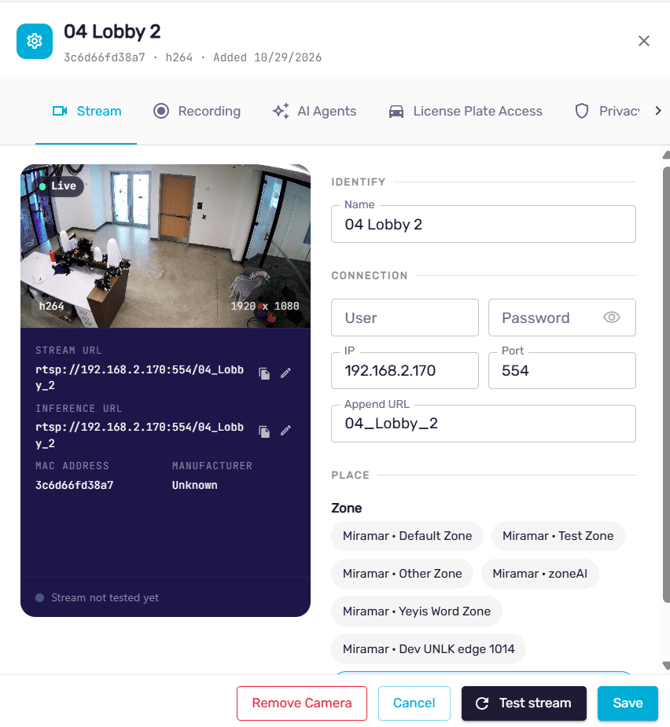
- View → in the scan results, or the camera card, opens the camera panel with the tabs Stream, Recording, AI Agents, License Plate Access, Privacy & Zones and Advanced.
- The Stream tab shows the live preview, codec, resolution, STREAM URL, INFERENCE URL, MAC address and manufacturer, plus the connection fields. Use Test stream and Save after any change.
9. Troubleshooting
| Symptom | Check |
|---|---|
| 401 Unauthorized | Username and password. URL-encode special characters, or use a password without them. |
| Connection refused or timeout | RTSP is enabled on the camera and the port is correct. The camera is on the same VLAN, or the ports are open between the AiVR and the camera. |
| 404 or stream not found | Wrong path or profile number. An ONVIF scan or ONVIF Device Manager shows the exact stream URL. |
| Works in VLC, fails on the AiVR | Camera clock is wrong (set NTP), or the codec isn't set on the stream. Try H.264 if H.265 shows grey frames. |
| Wrong view on a multi-sensor camera | Channel or sensor index. Hanwha starts at 0, most other brands at 1. |
| Add → is greyed out | No camera slots available. Remove an unused camera or add another AiVR. |
For questions or assistance, please contact your account manager or email support@alocity.com.