
Alocity is a cloud-based physical security platform that brings access control, video and intercoms together in one system, with AI built in. This article explains how Alocity works as an access control system: the hardware it runs on, how people get access, how doors are monitored and controlled, and where AI and video come in.
Tip: Looking for video? See Alocity as a VMS.
1. What Makes Alocity Different
Traditional access control systems run on a local server with separate software for video and visitor management. Alocity runs in the cloud:
- Manage from anywhere. Doors, users and schedules are managed at control.alocity.com or from the Alocity 1iD mobile app. There's no on-site server to maintain.
- One platform. The same account manages doors, cameras, intercoms, visitors and elevators, so an access event can be checked against video in a click.
- Mix hardware. Alocity's own readers and intercoms work alongside Mercury controllers and wireless locks, so existing hardware can stay in place.
- AI at the door. Face recognition, video at every access event and license plates as credentials are part of the platform, not add-ons.
2. The Hardware
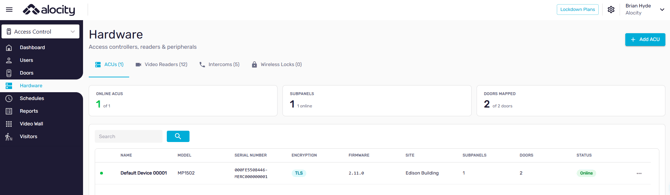
Everything connected is listed under Hardware in the Access Control module.
| Hardware | What it does | Learn more |
|---|---|---|
| F3D100 Intelligent Reader | A face, NFC card and mobile credential reader with a built-in camera. It controls its door directly. | Quick Start Guide F3D100 |
| AI-1000 Smart Intercom | A video intercom with a built-in reader and resident directory. It controls its door directly. | Quick Start Guide AI-1000 |
| Mercury controllers (ACUs) | Industry-standard LP and MP series panels with sub-panels for readers, inputs, outputs and elevators. Use third-party readers, or Alocity readers and intercoms on Mercury reader ports. | Quick Start Guide Mercury |
| Wireless locks | Battery-powered smart locks connected through Alocity's lock integration. | The Hardware Tab |
3. How Access Is Organized
Access in Alocity is built from a few pieces. Once you understand how they connect, every other setting makes sense.
| Piece | What it is |
|---|---|
| Sites | A building or location, with its own time zone and address. |
| Zones | A group of doors in a site, such as "Main Lobby" or "Floor 3". Zones make schedules easier to manage. |
| Doors | A controlled opening, with its reader, lock, door contact and exit device. |
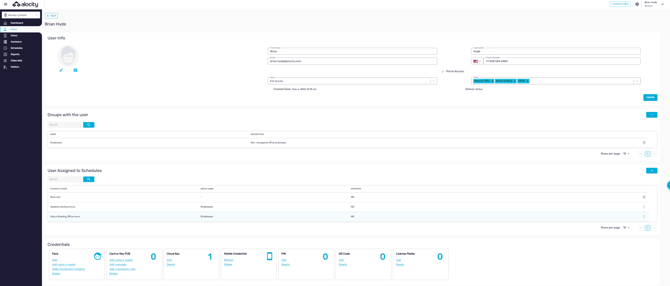
| Users | The people who need access: employees, residents or tenants. |
| Groups | Collections of users, such as "Maintenance" or "Building A Residents". |
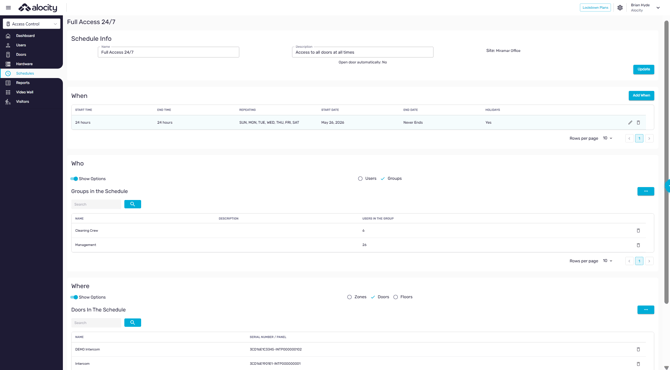
| Schedules | The access rule. Each schedule says When (days and times), Who (users or groups) and Where (zones, doors or elevator floors). |
Access is never granted on the door itself. A user can open a door only when a schedule includes them (directly or through a group), includes that door (directly or through a zone), and the current time falls within its When.
Unlock schedules and holidays
- Door unlock schedules: a schedule with Open door automatically turned on keeps its doors unlocked during its When, for example a front lobby during business hours.
- Holidays: each account has a holiday list for its country, plus its own company holidays. Holidays can be fixed dates or calculated rules, such as the fourth Thursday of November. To make a schedule follow the holiday list, turn off Active On Holidays on its When.
See Adding Schedules and Site Management.
4. Credentials
Each user can hold several credentials. Admins add and manage them on the user's page.
| Credential | How it works |
|---|---|
| Face | Enrolled from a photo, from a reader, or by the user through a selfie enrollment invitation. Read by F3D100 readers and AI-1000 intercoms, with liveness checks against photos and screens. |
| Card or key fob | Added by facility code and card number, or by presenting it at a reader. |
| Mobile credential | Unlock from the Alocity 1iD app on the user's phone. |
| Cloud Key | A link sent by email or text that unlocks doors from a browser, with optional start and end dates or one-time use. |
| PIN | A code sent to the user, with optional start and end dates or one-time use. |
| QR code | A code sent to the user, for guests and temporary access. |
| License plate | The user's vehicle plate, read by cameras running license plate recognition. |
Each door decides which credentials it accepts: on Alocity devices in the door's Identification Workflow, and on Mercury readers in the reader's Access Mode. See User Management, Managing Credentials and How to set up a mobile credential.
5. Monitoring and Controlling Doors
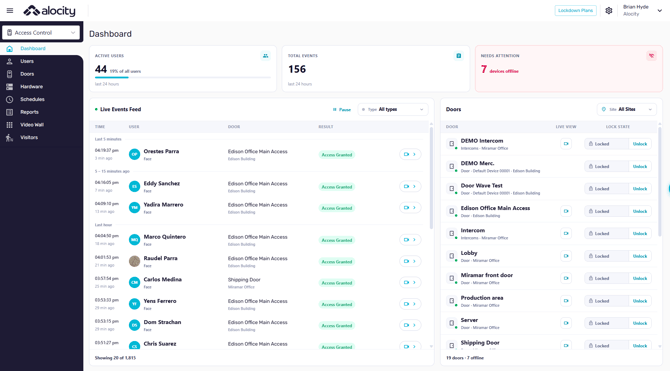
- Dashboard: active users, total events, devices that need attention, a live events feed and the state of every door.
- Doors: every door's type, hardware, site, door state (for example, Closed or Forced Entry) and lock state.
- Remote control: unlock a door, keep it unlocked, or pulse its lock from the door's page or the dashboard.
- Lockdown Plans: lock down a set of doors in an emergency from the Lockdown Plans button at the top of every page, and revert when it's safe.
- Access Logs: every access granted and denied, with the reason, credential and a video clip, plus charts by day, door and user. Export for audits.
Tip: Denied entries show the reason, such as Unknown User, Not Scheduled, Error in Card Format or Spoof Attack. This is the fastest way to see why someone couldn't get in.
6. Video at Every Door
Because access and video share one platform, every access event can carry video:
- F3D100 readers and AI-1000 intercoms record a clip at each access event, viewable from the access log.
- Cameras on an AiVR near a door can be searched by time from the same event.
- Ask Aimee, Alocity's AI Operator, questions that span both, such as "Who came through the warehouse door after 8 pm yesterday?"
See How to capture the video access log and Alocity as a VMS.
7. Visitors, Intercoms and Elevators
- Visitors: add visitors with arrival and departure dates, give them access with visitor schedules, and optionally require approval for passes requested by residents or employees.
- Intercoms and directory: visitors call residents or staff from the AI-1000 directory, and calls ring in the Alocity 1iD app or on a phone. See Admin Operation of the Video Intercom.
- Elevators: Mercury controllers control which floors a user can select, using the same schedules as doors. See Elevator Access Control Overview.
8. Automation and Integrations
- Workflows: send emails or text messages, or take actions, when an event happens, such as a mobile access attempt being denied.
- Mass messaging: send email, text or voice messages to users, groups or visitors.
- API and webhooks: connect Alocity to other systems with API keys and webhooks under Settings › Integration.
9. Admin Roles
Portal users are given a role (Full Access, Manager, Supervisor, Limited Access or Dashboard) and the sites they can manage. See Admin User Management and Platform Access Profiles.
10. Getting Started
- Set up your account, sites and zones: Getting started with Alocity Control Center.
- Install and add your hardware: the quick start guide for your F3D100, AI-1000 or Mercury controllers.
- Add users and their credentials.
- Create groups.
- Create schedules to give groups access to doors.
- Test each door and review the access logs.
For questions or assistance, please contact your account manager or email support@alocity.com.