
The Hardware page replaces the old Devices tab. It's one place to view and manage every access controller, reader, intercom and wireless lock connected to your Alocity system.
1. Open the Hardware Page
- Log in to the Alocity Control Center.
- Open the Access Control module and click Hardware in the left menu.
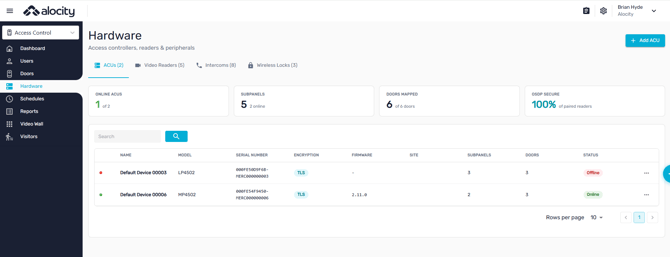
The page has four tabs: ACUs, Video Readers, Intercoms and Wireless Locks. Each tab shows summary cards for that hardware type, then a searchable table of every device.
2. ACUs (Mercury Controllers)
- Summary cards: Online ACUs, Subpanels, Doors Mapped and OSDP Secure (% of paired readers).
- Columns: Name, Model, Serial Number, Encryption, Firmware, Site, Subpanels, Doors and Status.
To add an ACU:
- On the ACUs tab, click + Add ACU.
- Select the Site the controller belongs to.
- Enter the MAC Address printed on the controller label.
- Click Add.
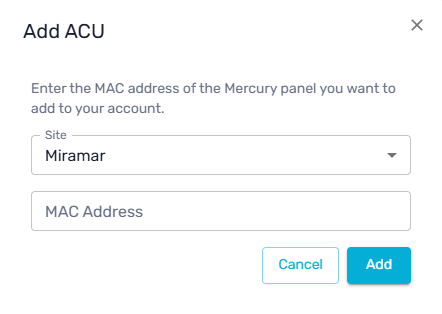
See 6. Adding a Mercury Controller to Alocity.
3. Video Readers (F3D100)
- Summary cards: Online, Faces Enrolled (across all sites), Avg. Match Speed and Tailgating Events (last 7 days).
- Columns: Name, Model, Site, Serial Number, Firmware and Status.
To add a video reader: See Adding a Device (F3D100).
4. Intercoms (AI-1000)
- Summary cards: Online, Calls (24h), Missed and Linked Doors (auto-unlock on answer).
- Columns: Name, Model, Site, Serial Number and Status.
To add an intercom: See Adding a Device (AI-1000).
5. Wireless Locks
- Summary cards: Locks Online, Low Battery, Gateways and Avg Battery (across fleet).
- Columns: Name, Model, Site, Battery (%), Signal and Status.
To add a wireless lock: See Adding a device
6. Device Details
Click any device to open its details. The page depends on the type of hardware:
ACU (Mercury controller)
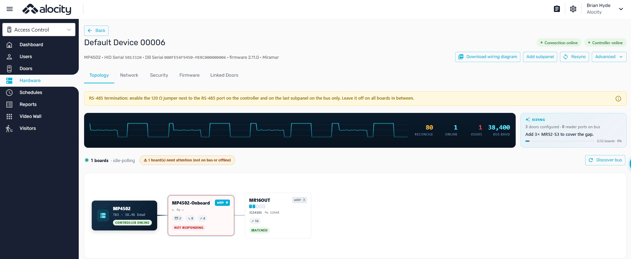
Opens the controller page: a Topology map of the controller, its sub-panels and their reader, input and relay ports, plus Network, Security, Firmware, Linked Doors and Elevator tabs. Actions include Resync, Discover bus, Add subpanel and Download wiring diagram. See B. Mercury Controller Details.
Video reader (F3D100)
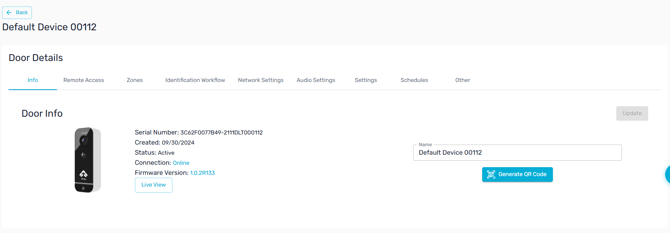
Opens the door details page with Info, Remote Access, Zones, Identification Workflow, Network Settings, Audio Settings, Settings, Schedules and Other tabs. The Settings tab covers relay state, lock release time, door open timeout, door contact position, Wiegand format, input and output, exit buttons and OSDP. See Quick Start Guide F3D100.
Intercom (AI-1000)
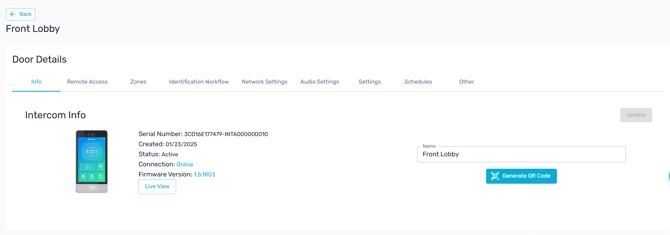
Opens the same door details page, labeled Intercom Info. Identification Workflow sets which credentials the device accepts: Face, Card, Cloud Key, Mobile, External Card, Web, Face on Card and PIN. See Quick Start Guide AI-1000.
Wireless lock
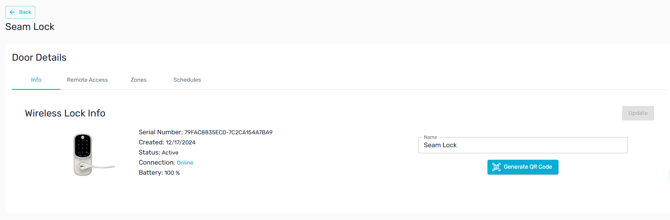
Opens a lighter door details page with Info, Remote Access, Zones and Schedules tabs. Info shows the serial number, created date, status, connection and battery level.
For questions or assistance, please contact your account manager or email support@alocity.com.